How to Build an Office Supply Request Tracker (Free Excel & Google Sheets)
Introduction
Keeping tabs on pens, paper, and other consumables can feel like a never‑ending game of hide‑and‑seek. In this guide you’ll learn how to set up a free, shareable tracker in Excel or Google Sheets that lets anyone submit a request, lets you approve it, and keeps a running log of what’s been ordered. The result is less frantic email chains, clearer budgets, and a calmer office vibe.
We’ll walk through every stage—from creating the spreadsheet to building a simple request form, then wiring it to Slack with BuyerBot so you can order straight from the chat. You don’t need a fancy software license; the tools are free and the steps are easy to follow.
What You’ll Need
A computer with internet access, a free Microsoft Excel or Google Sheets account, and a Slack workspace that already uses EHME Binder Clips & Paper Clips Set for organizing physical supplies. Optional but helpful items include a set of colorful note pads, reliable gel pens, a sturdy desk organizer, and invisible tape for quick fixes. All of these are linked below with pricing and ratings.
Step 1: Create the Master Tracker Sheet
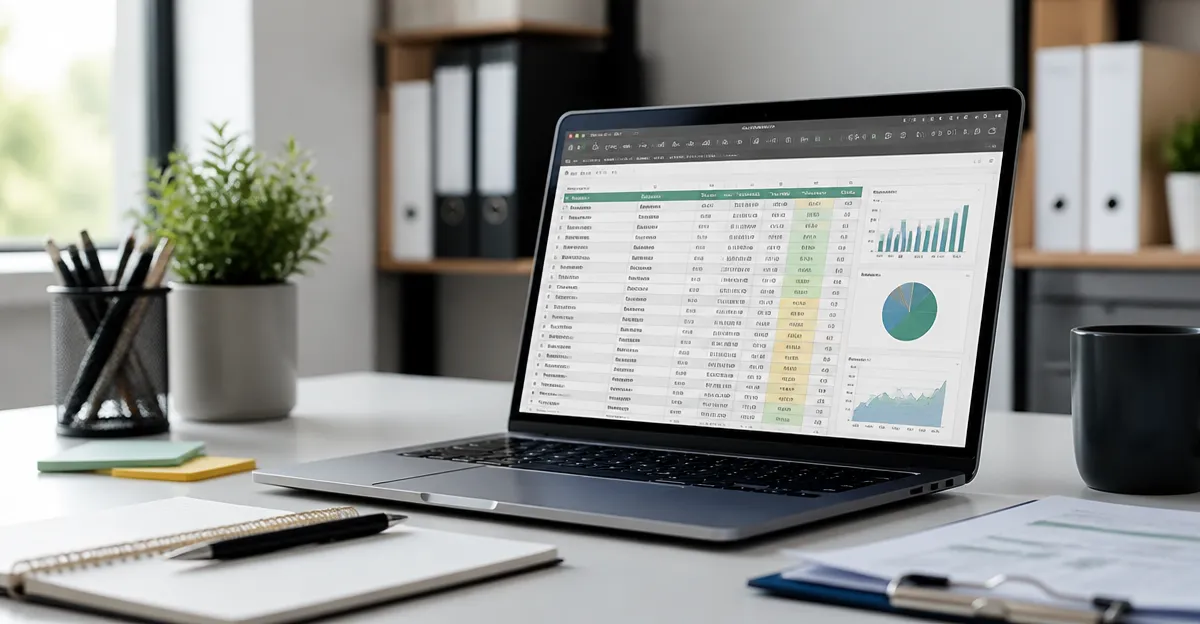
Open a new workbook in Excel or Google Sheets and name the file “Office Supply Request Tracker.” In the first tab, label columns as follows: Request ID, Date, Employee Name, Department, Item Description, Quantity, Status, Approved By, and Notes. Use the first row for headers and freeze that row so it stays visible while you scroll.
To make IDs unique, type ="REQ-"&TEXT(ROW(A2),"0000") in the Request ID column. This auto‑generates IDs like REQ‑0001, REQ‑0002, and so on. Set the Status column to a drop‑down list with options “Pending,” “Approved,” and “Fulfilled.” This keeps the workflow transparent.
Save the sheet to a shared drive or Google Drive folder where your team can view it but only managers can edit the Status column. The simple structure means you won’t need a database or IT support.
Step 2: Build a Simple Request Form
If you’re using Google Sheets, click Tools → Create a Form. The form will automatically link to your sheet, populating each row as a new request comes in. Add fields that match the tracker columns: Name, Department, Item Description, and Quantity. Make the Item Description a short‑answer field so users can type exactly what they need.
For Excel users, you can use Microsoft Forms (free with a Microsoft account) and set the response destination to your workbook. The key is to keep the form short—no more than five fields—so employees actually fill it out.
Once the form is live, copy the share link and pin it in a Slack channel dedicated to supplies. This is where BuyerBot shines: you can type /buyerbot request and the bot will drop the form link for anyone who needs it.
Step 3: Organize Your Physical Supply Station
A tidy supply station makes it easier to fulfill requests quickly. Start by placing the EHME Binder Clips & Paper Clips Set on a small drawer or tray. The assorted sizes let you group similar items—large clips for bulk paper stacks, tiny ones for receipts—so you always know what’s available.
Next, add the AILZFEI 5x8 Note Pads. Their colorful covers make it easy to assign a pad to each department, and the perforated pages tear cleanly for quick to‑do lists.
Keep a pack of Sharpie S‑Gel Black Pens on hand. The smooth, non‑smearing ink ensures every request note stays legible, even when you write on the back of a receipt.
Finally, use the Simple Trending 7‑Tier Desk Organizer to separate pens, clips, tape, and spare notebooks. Its vertical design saves desk space while giving you a clear visual inventory.
Step 4: Connect the Tracker to Slack with BuyerBot
BuyerBot is a Slack app that lets you order directly from Amazon without leaving the conversation. In the Slack app directory, search for “BuyerBot” and install it to the workspace where your supply channel lives. During setup, grant the app permission to post messages and read channel history.
Now create a shortcut command: /buyerbot order. When you type this command, BuyerBot will ask for the Amazon link of the item you need. Paste the link for the product you’re ordering—say the binder clips—and the bot will confirm the quantity and price before placing the order.
Because the bot logs every purchase in a private channel, you can later export that log and paste it into the “Notes” column of your tracker. This creates a single source of truth for budgeting and audit purposes.
Step 5: Automate Status Updates
Use a simple Google Sheets script (or Excel macro) that watches the Status column. When a manager changes a row from “Pending” to “Approved,” the script can automatically post a confirmation message in the Slack channel, tagging the requestor. This reduces the back‑and‑forth and keeps everyone in the loop.
To set up the script, go to Extensions → Apps Script in Google Sheets, paste a few lines of code that read the edited range, and publish the trigger on “On edit.” If you’re not comfortable coding, you can use Zapier’s free tier to connect the sheet to Slack with a “New Row” trigger.
With automation in place, the only manual step left is to restock the physical station when the “Quantity” column hits a low‑stock threshold—say fewer than five clips left. At that point, you or a designated team member can fire the /buyerbot order command again.
Tips & Pro Tips
Tip: Color‑code the Status column (green for Approved, orange for Pending, red for Fulfilled) to make the sheet instantly readable.
Pro Tip: Keep a spare roll of Scotch Magic Tape with Dispenser in the supply station. It’s perfect for sealing sealed envelopes or fixing torn documents on the fly, and the dispenser ensures clean cuts every time.
Another best practice is to schedule a monthly audit of the tracker. Export the sheet to CSV, compare it with your Amazon order history, and adjust the low‑stock thresholds if you notice frequent stock‑outs.
Troubleshooting
Problem: BuyerBot isn’t responding to the /buyerbot order command.
Solution: Verify the app is installed in the correct workspace and that you have the necessary permissions. Re‑install the app if needed, and check that the Amazon link you paste matches the exact URL provided in the product list.
Problem: The Google Sheets script isn’t posting to Slack.
Solution: Open the Apps Script editor and run the function manually to view any error messages. Common issues involve missing OAuth scopes—grant the script permission to post to Slack via the “Deploy” menu.
Conclusion
By following these steps you now have a free, cloud‑based office supply request tracker that integrates with Slack, automates approvals, and keeps your physical supplies organized. The combination of a simple spreadsheet, a quick request form, and BuyerBot’s Amazon ordering power means you’ll spend less time chasing pens and more time getting work done.
Remember, the tools we recommended—binder clips, note pads, gel pens, a desk organizer, and magic tape—are inexpensive helpers that make the whole process smoother. Feel free to tweak the template to fit your team’s size, and watch the chaos turn into calm.
Products Mentioned in This Guide
Frequently Asked Questions
What is an office supply request tracker and why should I use one?
It’s a shared spreadsheet that logs supply requests, approvals, and orders, reducing email clutter and improving budget visibility.
How do I create a basic office supply request tracker in Microsoft Excel?
Start a new workbook, add columns for item, quantity, requester, status, and date, then use data validation for dropdowns and simple formulas to track totals.
Can I set up the same tracker in Google Sheets?
Yes—duplicate the Excel layout in a Google Sheet, enable sharing, and use Google Forms to collect requests that populate the sheet automatically.
How can I integrate the tracker with Slack for real‑time notifications?
Connect the sheet to Slack using a webhook or a bot like BuyerBot, which posts a message whenever a new request is submitted or approved.
Is the office supply request tracker template free and where can I get it?
The template is free; you can download it from the article’s link or copy the provided Google Sheet template directly from the guide.